
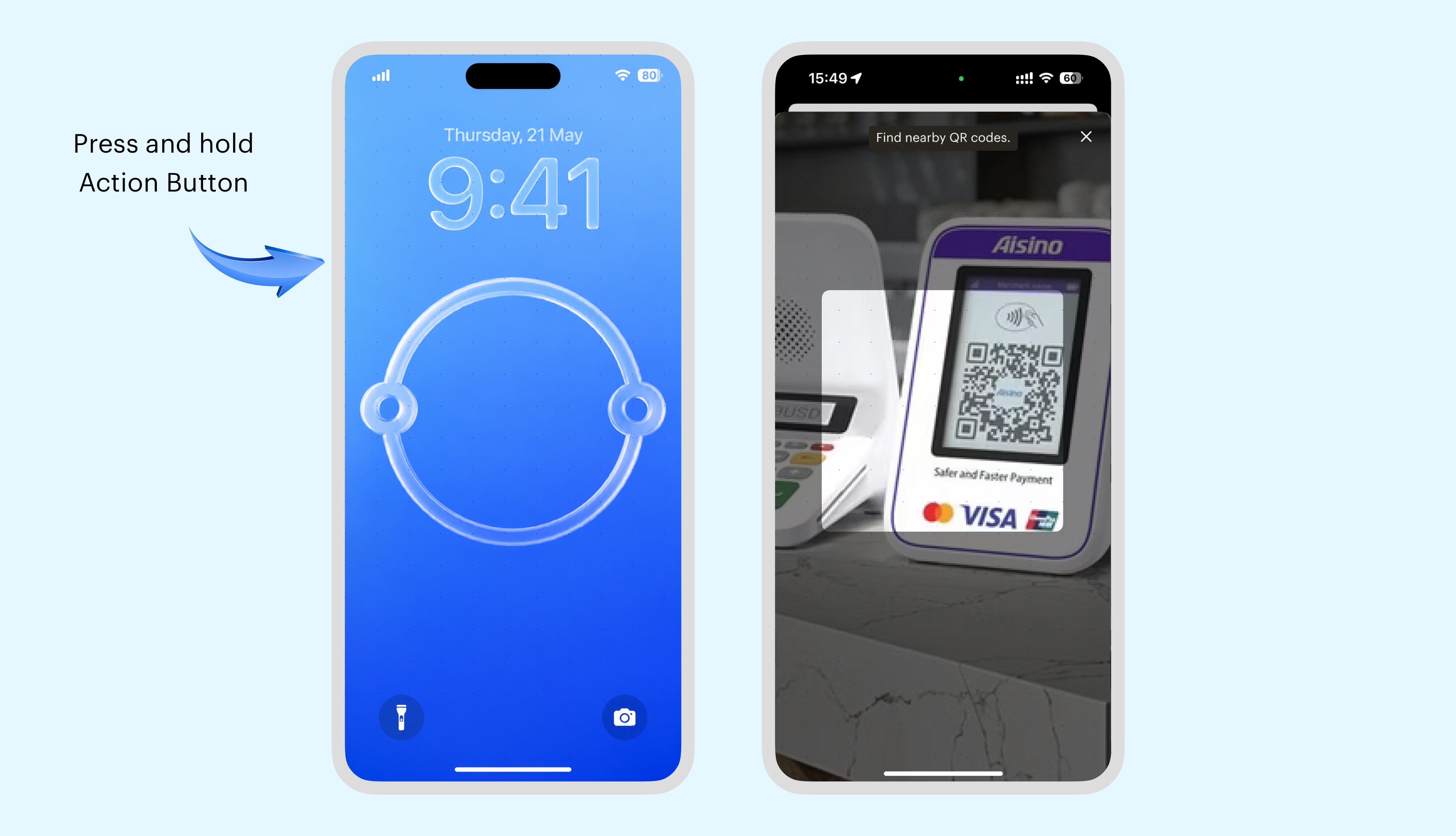
Pay by QR in GrabrFi is now available as an iOS Action. You can launch the QR scanner from the GrabrFi app icon on your Home Screen, from the iPhone Action Button, or from the Shortcuts app.
Before you start
Update the GrabrFi app to the latest version from the App Store.
Make sure your GrabrFi account is approved, and your KYC is complete.
Pay by QR is currently supported in Argentina, Brazil and Peru. Availability in other countries will be announced separately.
Option 1. Assign Pay by QR to the Action Button
The Action Button is available on iPhone 15 Pro, iPhone 15 Pro Max, and iPhone 16 and newer.
You do not need to create or install a shortcut. The action is available natively.
Open the Settings app on your iPhone.
Search for Action Button, then swipe right to Shortcut.
Tap Choose a Shortcut.
Scroll to the Apps section, find and select GrabrFi.
Tap Pay by QR.
Tip. You can assign Pay by QR to a specific Focus mode, so it only triggers when you choose.
Option 2. Long press the GrabrFi app icon
This is the fastest way. No setup needed.
Find the GrabrFi app on your Home Screen.
Press and hold the icon until a menu appears.
Tap Pay by QR.
The QR scanner opens right away.
Option 3. Add Pay by QR to the Shortcuts app
Use this if you want to combine Pay by QR with other actions or pin a shortcut to your Home Screen.
The simplest path is to install our ready-made shortcut from this link: Add Pay by QR shortcut.
Or build your own:
Open the Shortcuts app.
Tap + to create a new shortcut.
Tap Add Action.
Search for GrabrFi and select Pay by QR.
Tap Done.
Optional: open the shortcut, tap the share icon, and choose Add to Home Screen to pin it as a dedicated icon.
Troubleshooting
I cannot find GrabrFi in the list of apps. Update the GrabrFi app, then sign in. Open the app at least once before assigning the action.
The Action Button option is missing in Settings. Your iPhone model does not include an Action Button. Use Option 2 or Option 3 instead.
The shortcut link will not open. Make sure you open the link on an iPhone running a recent version of iOS, and tap Add Shortcut when prompted.
The scanner opens but does not recognize the QR code. Pay by QR currently supports merchant QR codes in Argentina, Brazil and Peru. Check the country and make sure the QR code is clear and well lit.
The action asks me to sign in every time. Enable Face ID for GrabrFi in Settings, Face ID and Passcode.