
Verification codes or one-time passwords (OTPs) are used to help you complete important actions on your GrabrFi account, such as logging in or confirming sensitive changes. If you're not receiving your code, follow the steps below.
How GrabrFi sends verification codes
GrabrFi delivers verification codes through three channels, depending on your device and settings:
Push notification. The default if you're logged in on a mobile device with notifications enabled.
WhatsApp. The default when logging in on a new device. WhatsApp delivery is enabled for all users by default.
SMS. Available as an alternative if push or WhatsApp is unavailable, or if you've turned off WhatsApp delivery in your settings.
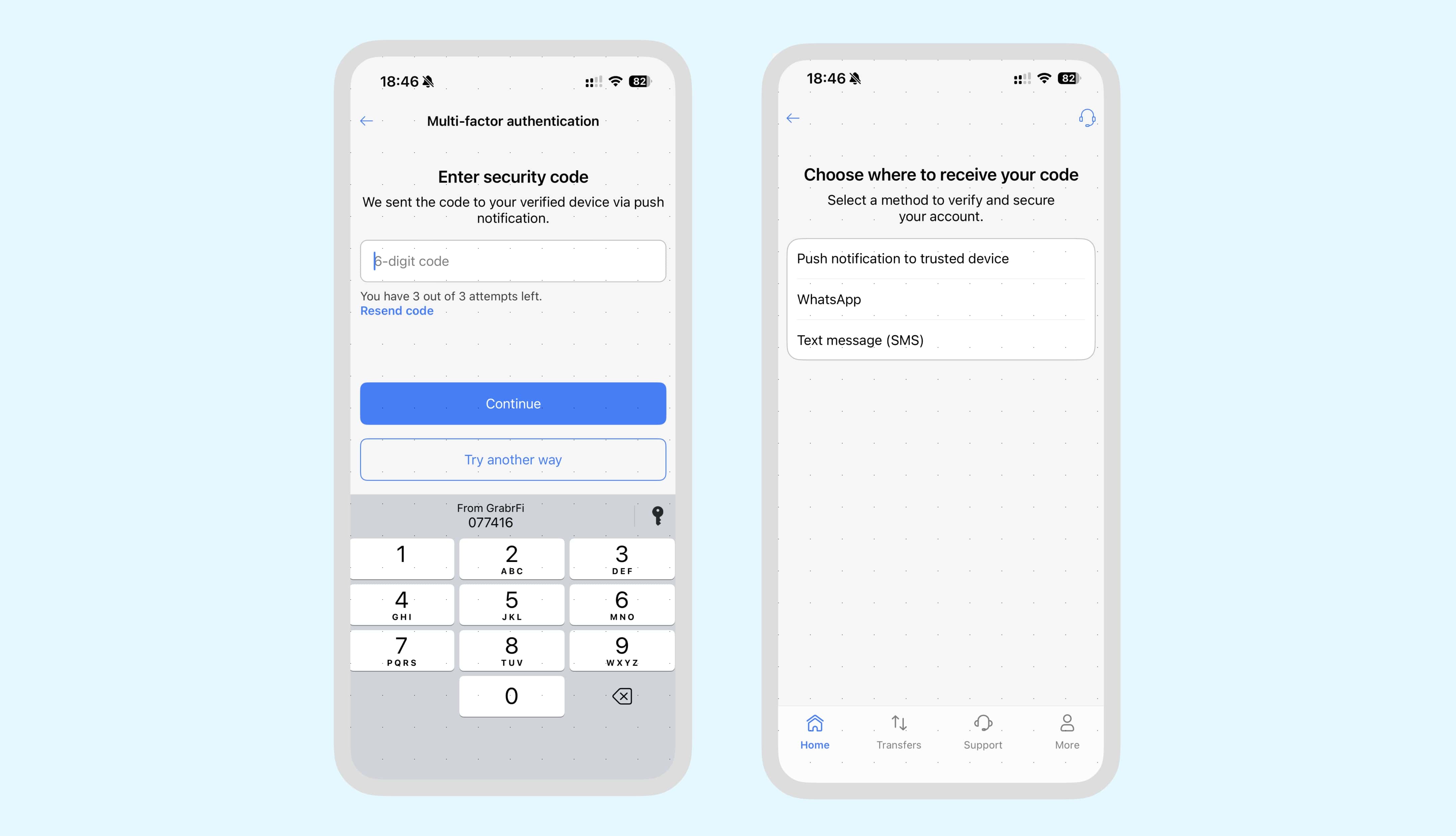
Try an alternative delivery method
If your code doesn't arrive through the default method, tap the option on the verification screen to receive it through a different channel. For example, if you didn't receive a WhatsApp message, you can choose SMS instead.
Troubleshooting WhatsApp delivery
If you're not receiving codes via WhatsApp:
Make sure WhatsApp is installed and up to date on your device.
Make sure the phone number linked to your WhatsApp account matches the number on your GrabrFi profile.
Check that your device has an active internet connection (Wi-Fi or mobile data).
Check that WhatsApp notifications are enabled in your device settings.
Look in your WhatsApp chat list for a message from GrabrFi.
If you prefer not to receive codes via WhatsApp, you can disable it in your two-factor authentication settings. Go to More → Settings → Two-factor authentication → WhatsApp and tap to disable. You'll then receive codes via SMS when push is not available.
Troubleshooting SMS delivery
If you're not receiving codes via SMS:
1) Confirm your phone number
Make sure the phone number you entered during sign-up is correct and active. If you recently changed mobile carriers but kept the same number, SMS delivery may be temporarily affected.
2) Check spam or blocked messages on Android devices
On some Android devices, SMS messages may be automatically filtered as spam.
To check this:
Open the Messages app
Tap the three-dot icon in the top right corner
Select "Spam & blocked messages"
Check if your access code appears there
If you find the message, mark it as not spam to prevent this from happening again.
3) Check your mobile carrier and network
SMS delivery depends on your mobile carrier. Temporary network issues or restrictions from your provider may prevent messages from being delivered. If possible, check with your carrier to confirm there are no known issues.
4) Verify your device can receive SMS
Make sure your device is able to receive SMS messages and is not blocking messages from unknown senders. Restarting your device can also help resolve temporary issues.
5) Avoid roaming or unstable connectivity
SMS messages may not be delivered properly while roaming or when your device is moving between networks. For best results, retry when connected to a stable cellular connection.
Wait and try again
If you recently attempted verification multiple times, please wait 24 hours before trying again. Then retry the process using a stable connection.
Still not receiving codes?
If the issue continues after 24 hours, please contact our support team and include:
The date of your last verification attempt
Which delivery method you tried (push, WhatsApp, or SMS)
Whether you recently changed mobile carriers
Whether your account is in sign-up or already fully opened
Our team will be happy to help.